Class Themes
Some classes have a focus: "Knife defense" this Tuesday, "Bring a costume" on Halloween. Put a short label and an optional note on any date of a class and families see it right on their calendar. Class themes are included with the Business and Business Pro plans.
Turning it on
Open your organization settings and tick "Show a theme on special classes". It is off until you turn it on. If your plan lapses, your labels are kept but hidden from families until you are back on a paid plan.
Choosing the word
The default heading is "Theme", but you can call it whatever fits your studio ("Focus", "Skill of the week", "Bring"), up to 30 characters. Families see your word above the label.
Filling in dates
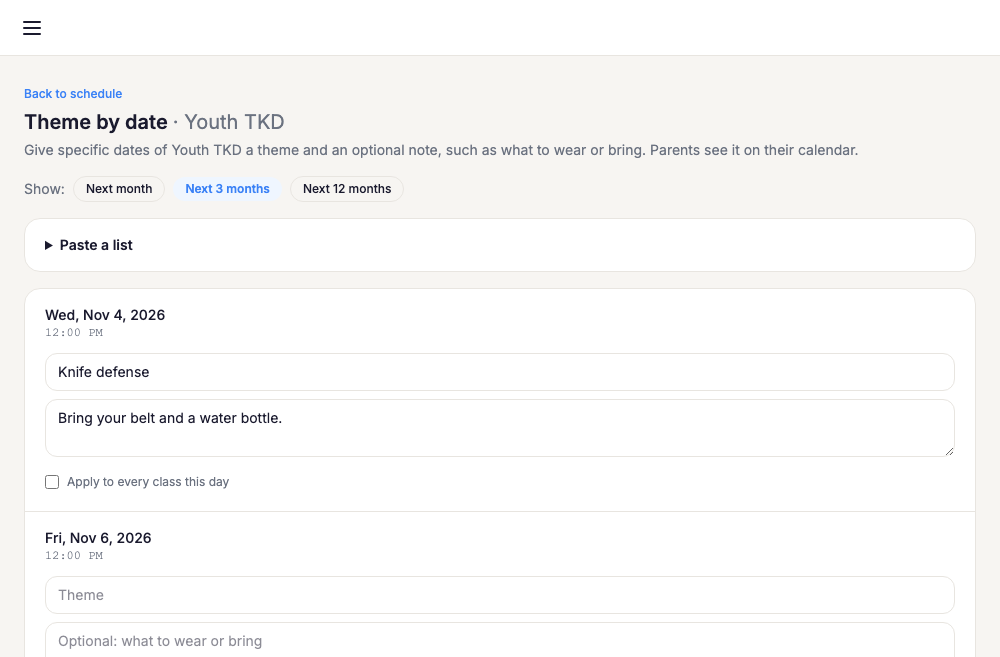
On your schedule page, each class has a link named with your heading word. It opens a planning screen listing the class's upcoming dates for one month, three months or a year. Type a label (up to 40 characters) and an optional note (up to 500) next to any date and save. Clear a label to remove it. Dates that are closed or replaced by an override are marked so you can see why.
Planning a lot at once? Paste a list with one date per line, such as
June 8: Knife defense (bring your belt), and the form fills
itself in for you to check before you save.
Studio-wide days
For a day that applies to everything, like a Halloween costume day, tick the Apply to every class on box under that date. The same label and note are copied onto your other classes in that schedule on that day (cancelled classes are skipped).
Rotating themes
Some classes follow the same themes every year. Tick "Rotating themes" in your organization settings, then open a recurring class's rotation page from its planning screen. Choose how many months each theme lasts (1, 2, 3, 4 or 6) and the month the cycle starts, then fill in a theme for each stretch. Advanced Team, for example, can run Dynamic Kicks in January, Knife Defense in February and Board Breaking in March, and repeat them every year. Changing the length or start month previews the new grouping and warns you about any theme that would be dropped. Saving with every theme blank removes the rotation.
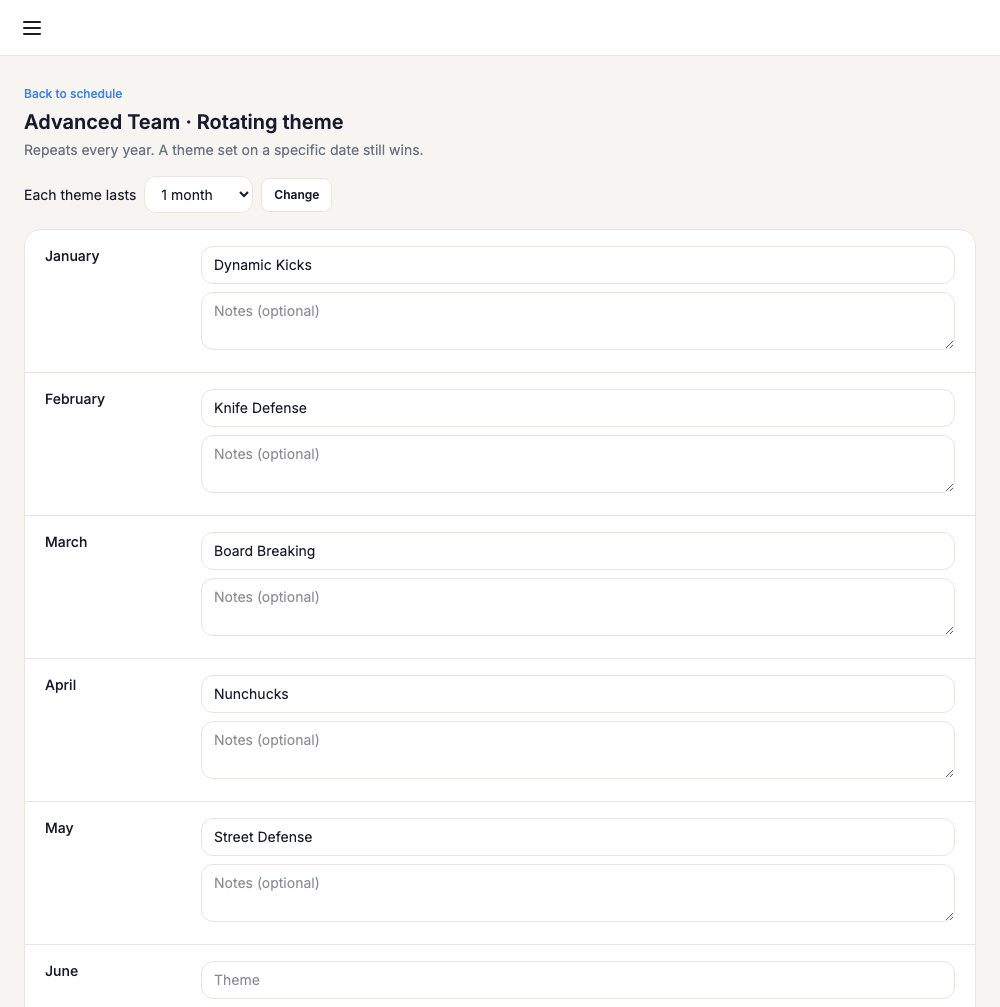
A theme you type on a specific date always wins over the rotation. On the date planning screen, the rotation's theme shows as a placeholder in blank rows. To skip it for one day, tick No theme this date and leave the row blank. Closed and skipped classes never show a theme.
Print a theme handout
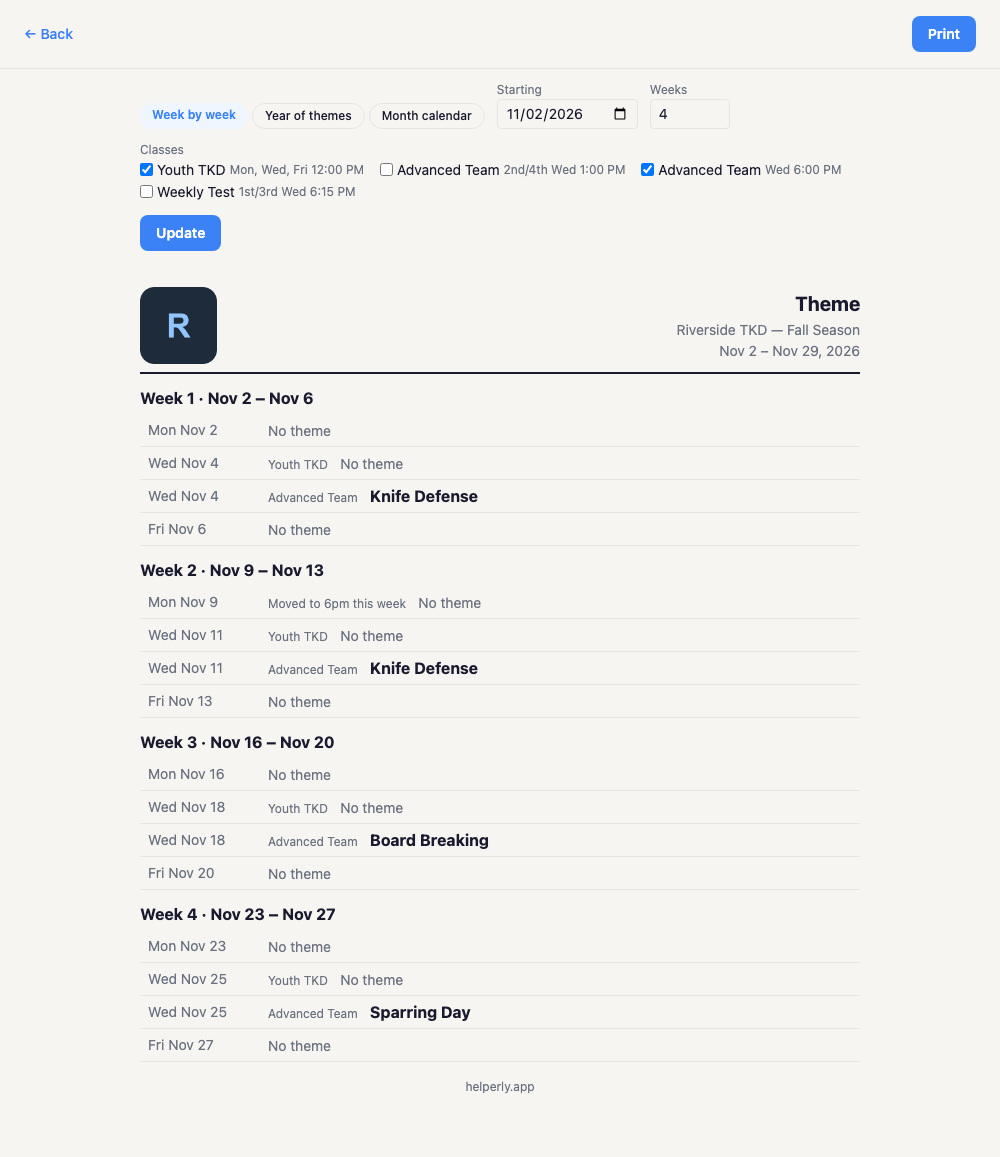
Want something to hand out or pin to the wall? Choose Print themes on your schedule page (or on a class's planning screen) to build a sheet of your themes, then press Print. Pick one of three layouts at the top of the page:
- Week by week lists each class date with its theme, for the number of weeks you choose.
- Year of themes shows each rotating class's theme for every month of a year, plus the themes you set on specific dates from today on.
- Month calendar lays the themes out on a calendar grid, for as many months as you choose.
Choose the dates and tick the classes to include, then press Update. The sheet carries your organization's logo (or name) and your heading word. Only the theme itself prints, never the notes you wrote for families or any family's private notes, and closed dates are left out.
Overrides don't take a theme
When you post an override that replaces a themed class, the new class does not carry the theme over. Put what families need to know, like what to bring, in the override's own notes.
Where families see themes
The label appears under the class name on the family calendar, and the class's detail view shows your heading word, the label and the note. Themes also travel with the class everywhere else a family looks, free or paid:
- The weekly family digest shows "Advanced Team (Knife Defense)" with the note beneath it.
- Reminder emails show your heading word, the label and the note.
- Reminder push notifications put the theme in the title, such as "Molly's Advanced Team: Knife Defense", and lead the body with the note.
- "Who's driving" reminders to drivers show the theme and note too.
- Phone calendars that subscribe to a Helperly feed show "Advanced Team: Knife Defense" and the note in the event description.
- Your public schedule page and its calendar download show the theme next to the class.

On your public schedule page
When themes change
Families plan around a theme, so a change to a themed class is worth telling them about. Say Advanced Team's Wednesday theme is Knife Defense and, five days before, you change it to Board Breaking (or edit its note, move the class, change the place, or cancel it). Every family with a reminder on that class gets a message by email or push, whichever their reminders use (a push-only reminder gets email instead if that device can't receive push), such as "Theme: Knife Defense → Board Breaking", and the same update appears once in the schedule's chat. Moving the class to another day in the same week sends one "changed" message with the old and new day, not a cancellation. This applies to changes made within 7 days of the class. Adding a theme for the first time never sends anything, and a family that turns its reminder off stops getting these messages. If you turn themes off, or your plan lapses, nothing is sent.
Moving a class
When you change a recurring class's days or start time, its upcoming themes follow it. If Advanced Team moves from Wednesday to Tuesday, the Wednesday theme moves to that week's Tuesday. A theme is never moved onto a date in the past, onto a date that already has its own theme (or a "No theme this date" mark), or from a recurring class to a one-off event. Anything that could not move stays where it was, and a card on the schedule page lists those leftovers with a Remove these button.
Dates that replace the rotation
A theme typed on a date hides the rotation's theme for that day. The planning screen labels these rows "Replaces rotation: Dynamic Kicks". Press Use the rotation on a row to clear it so the rotation shows again, or use the button at the top to do it for every date that hides a rotation theme. Dates marked "No theme this date" are kept by both buttons. Unsaved edits on the page are discarded when you do. Saving a rotation also tells you how many upcoming dates have their own theme and will keep it.