Getting Started
Add a profile for each kid — or yourself — enter recurring activities, and see everything on one calendar. Most families are set up in under five minutes.
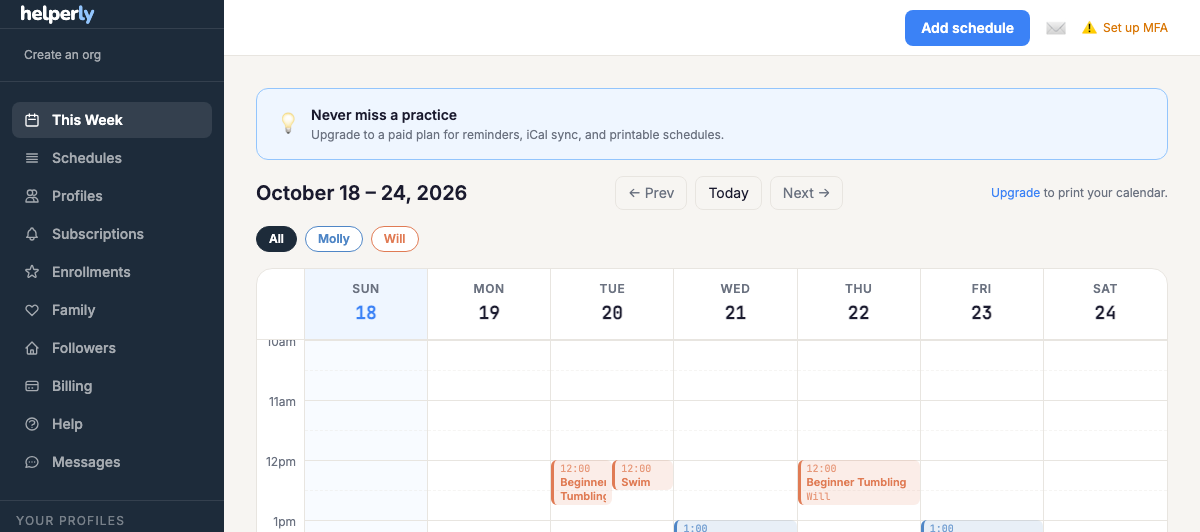
- 1. Sign up — create your free account, no credit card required.
- 2. Add a profile — add a kid, or click "Add myself" to track your own schedule too. Give each one a color so their events are easy to tell apart on the calendar.
- 3. Add a recurring schedule — e.g. "Martial arts every Tuesday, 6pm, for 9 weeks." Helperly repeats it automatically.
- 4. Check the week view — every profile's activities, color-coded, side by side.
Removing a schedule
Done with a schedule you created? Open it, choose Edit, and use "Remove this schedule" in the danger zone. Reminders for it stop and it moves to "Archived schedules" at the bottom of your schedules list, where you can restore it later (you will need to subscribe again for reminders).
Private notes
On the Family plan you can attach a private note to any class on a given day: "Bring the red goggles," "Picture day." Click the class on your calendar and type it under "Your note." Only your household sees it, you and any co-parents, never the studio or anyone who follows your family.
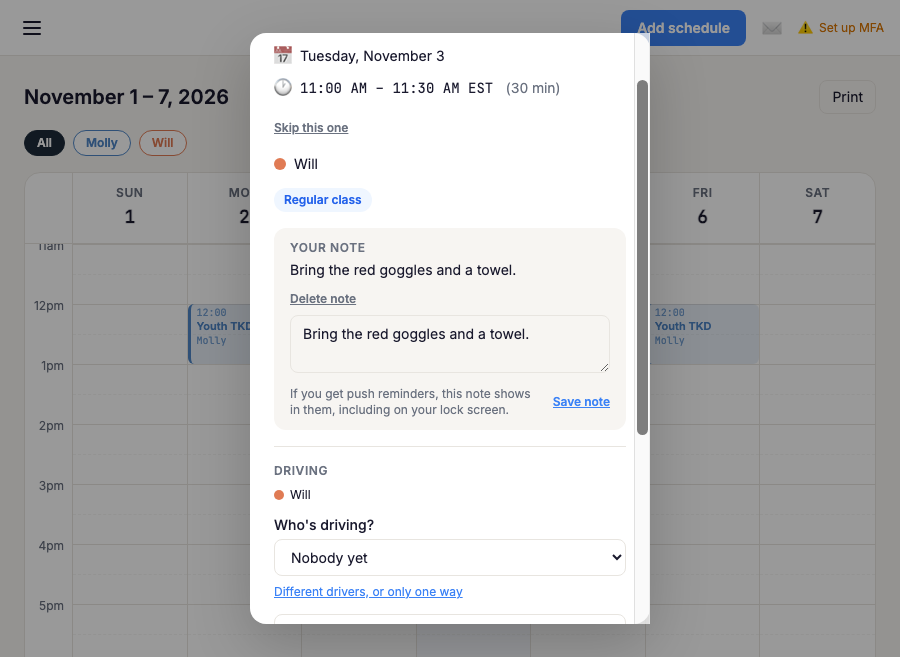
The note shows up on the class in your reminders, your weekly summary, and the phone calendar feeds you subscribe to. Reminder pushes can appear on a locked screen, so keep notes you would not want a bystander to read out of them. If a class moves to another day, its upcoming notes move with it. Notes are deleted 180 days after the class, and are included in Download Your Data.
Video: Set up your family in 5 minutes